Artificial intelligence has quietly become the hardest-working junior designer on many teams. From generating first-draft concepts in seconds to retouching photos, building color palettes, and laying out social posts, today’s AI tools handle the repetitive parts of design so you can focus on taste, strategy, and craft.
But not every AI tool deserves a place in a designer’s workflow. Some produce generic results, some create copyright headaches, and some simply duplicate features you already pay for. This guide rounds up the seven AI tools that professional and aspiring graphic designers are actually using in 2026 — what each one does best, where it fits in your process, and what to watch out for.
What to Look for in an AI Design Tool
Before you sign up for anything, it helps to judge AI design tools against a few practical criteria:
- Output quality and control: Can you steer the results precisely, or do you get the same look every time? The best tools offer iteration — regenerating variations, editing regions, and dialing styles up or down.
- Commercial licensing: If client work is on the line, check the license. Tools trained on licensed content (such as Adobe Firefly’s training on Adobe Stock) are safer bets for commercial use than tools trained on unknown web scrapes.
- File export and compatibility: Vector support (SVG, EPS) matters for logos and print. For photo work, high-resolution PNG or PSD export keeps the pipeline clean.
- Integration with your stack: A tool that lives inside Photoshop or Figma saves more time than a standalone web app you have to import from and export to.
If you are new to AI-generated imagery in general, our guide to the best free AI image generators is a good starting point before you invest in designer-specific platforms.
1. Adobe Firefly — The Safest Bet for Commercial Work
Adobe Firefly is Adobe’s family of generative AI models, built directly into Photoshop, Illustrator, and Express. Its headline features — Generative Fill, Generative Expand, and text effects — let you extend images, remove objects, and turn a word into a textured letterform, all inside the apps designers already use.
Firefly’s biggest selling point is trust. The models are trained on licensed Adobe Stock imagery and public-domain content, which makes the commercial-use story far clearer than most competitors. For agencies and freelancers delivering client work, that peace of mind matters more than any single feature.
Where it shines
- Generative Fill in Photoshop: Select an area, describe what should be there, and Firefly paints it in — matched to the scene’s lighting and grain.
- Generative Recolor in Illustrator: Recolor vector artwork with a text prompt instead of hunting through swatch libraries.
- Text effects: Generate stylized typography from a description (“chrome balloon letters”) for headlines and posters.
Plans: Firefly is included with Adobe Creative Cloud subscriptions, with monthly generative credits; a free tier with limited credits is also available. Check current pricing on Adobe’s site, as plans and credit allowances change.

2. Canva Magic Studio — AI Design for Speed
Canva’s Magic Studio bundles a full suite of AI features: Magic Design (turn a prompt into a complete layout), Magic Edit (swap elements in photos), Magic Expand, background removal, and Magic Write for copy. It is less about fine-art generation and more about producing finished, on-brand marketing collateral fast.
For designers who spend half their week making social posts, pitch decks, and ad variations, Magic Studio is a legitimate time-saver. Brand Kit integration means AI-generated designs still follow your fonts, colors, and logo automatically — something pure image generators can’t do.
Where it shines
- Layout generation: Describe a flyer or Instagram carousel and get editable multi-page designs, not flat images.
- Bulk creation: Generate dozens of ad variants from a spreadsheet of copy in one run.
- One-click background removal: Clean cutouts for product shots and headshots without opening Photoshop.
Plans: Many AI features work on Canva’s free tier with usage limits; Canva Pro unlocks higher limits and premium tools. Check current pricing before committing.
Designers focused on fast social and marketing output may also enjoy our roundup of free AI logo makers, which pair well with Canva for quick brand kits.
3. Midjourney — Concept Art and Moodboards
Midjourney remains the gold standard for evocative, high-fidelity AI imagery. It doesn’t design finished layouts — it creates striking visual ingredients: hero backgrounds, conceptual illustrations, textures, and moodboard material that you composite and refine in your editor of choice.
Its strength is style. With the right prompting, Midjourney produces images with a cohesive art direction that stock libraries rarely match. Many brand designers now build campaign moodboards with it before touching Figma.
Where it shines
- Concept exploration: Generate 20 art directions for a campaign in an afternoon, then refine the winner.
- Style reference (–sref): Lock a consistent visual style across dozens of images for a series.
- Character and scene consistency: Newer versions hold character and setting consistency far better than earlier models.
Plans: Midjourney is subscription-based with several tiers differing in GPU hours and queue priority. Check current pricing on midjourney.com; note that commercial rights depend on the tier.
4. Ideogram — AI Design That Gets Text Right
The historic weakness of AI image generators was text: gibberish lettering rendered them useless for posters, logos, and signage. Ideogram cracked that problem and now leads the pack for legible typography inside generated imagery — making it genuinely useful for thumbnails, flyers, and social graphics.
Ideogram also offers Magic Prompt, which expands short ideas into detailed prompts, and a design-focused interface with preset styles (poster, sticker, graffiti, minimal). For designers, it’s the fastest route from an idea to a finished, readable graphic.
Where it shines
- Accurate text rendering: Posters, t-shirts, and thumbnails with spelled-correct headlines.
- Preset design styles: One click switches between sticker, typography, graffiti, and 3D render aesthetics.
- Canvas editor: Edit and iterate on generations without leaving the tool.
Plans: A free tier with weekly credits is available; paid plans add priority generation and more credits. Check current pricing for the latest limits.
For a deeper comparison of the major image generators, see Midjourney vs DALL-E vs Ideogram for beginners.
5. Kittl — AI-Powered Design for Print and Merch
Kittl is a browser-based design platform aimed squarely at print-on-demand, merch, and vintage-style graphics. Its AI features generate illustrations, text effects, and mockups, while the editor handles t-shirt templates, distressed textures, and layered typography the way a print shop would.
Where Canva optimizes for digital marketing, Kittl optimizes for things you wear and hang on walls. Its library of design elements and one-click mockups make it a favorite among Etsy sellers and small print businesses.
Where it shines
- AI illustration styles: Vintage, grunge, and retro effects that would take hours in Photoshop.
- Mockup generator: Preview designs on shirts, posters, and mugs instantly.
- Text transformation: Warp, bend, and texture typography with presets.
Plans: A free plan covers basics; paid plans unlock AI generations and commercial licensing tiers. Check current pricing to match the plan to your merch volume.
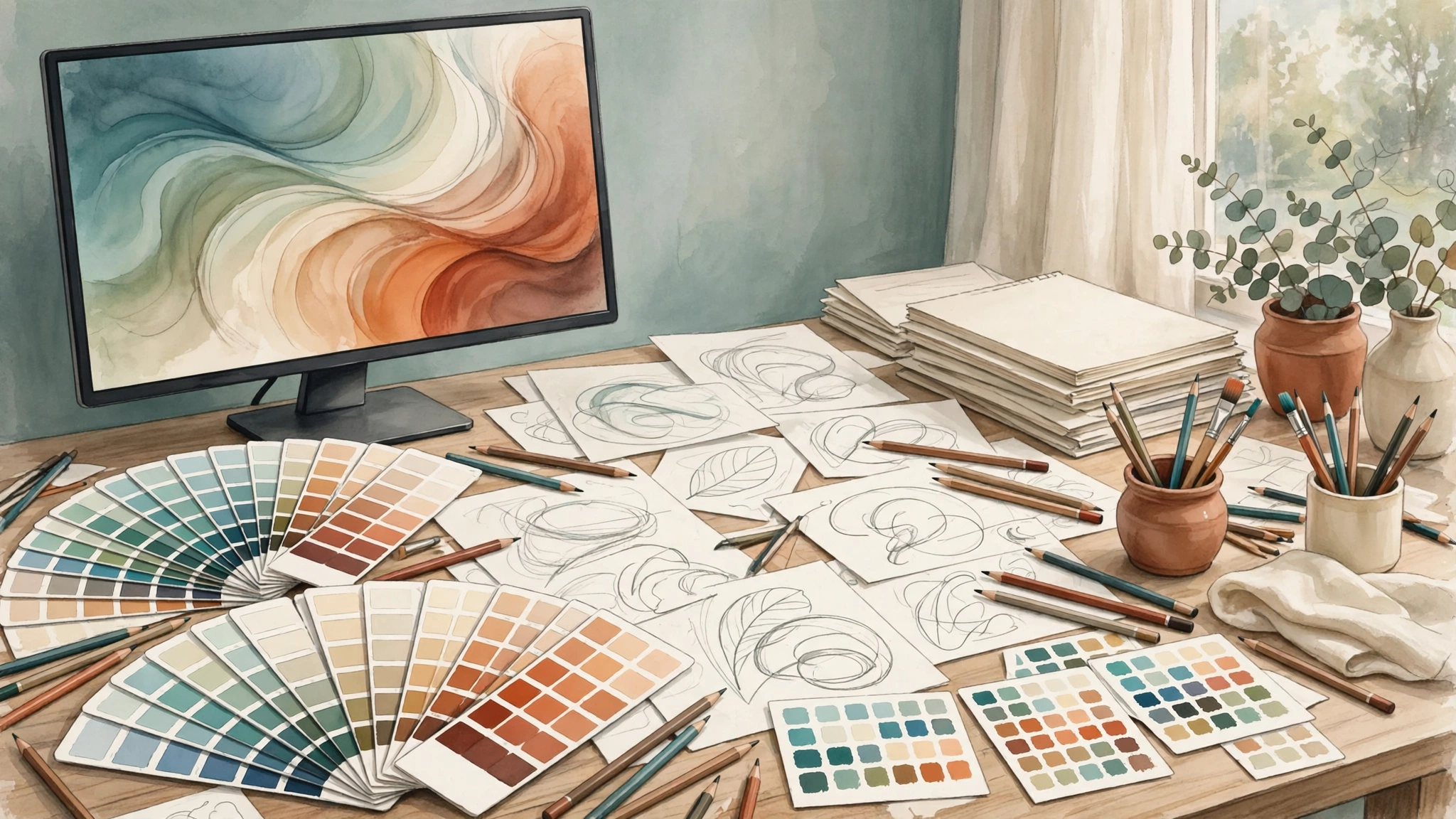
6. Khroma — An AI Color Palette That Learns Your Taste
Khroma is a free AI color tool that learns which colors you like — you train it by picking 50 favorites — then generates infinite palettes, gradients, and combinations in your style. Search by keyword (“dusty rose”), block colors you dislike, and copy any palette as HEX, RGB, or CSS.
It won’t replace a designer’s eye, but it kills the blank-palette moment at the start of a project and surfaces combinations you wouldn’t have tried. It’s also completely free, which makes it an easy addition to any workflow.
Where it shines
- Personalized generation: Palettes converge on your aesthetic the more you train it.
- Gradient and image-based palettes: Extract colors from uploaded images for brand-consistent work.
- Accessibility info: Contrast ratios help you keep designs WCAG-friendly.
Plans: Free to use.
7. Remove.bg — One-Click Background Removal
Remove.bg does exactly one thing — removes image backgrounds — and does it better than almost anything else. Upload a photo and get a clean cutout in seconds, with impressive handling of hair, fur, and translucent edges. A Photoshop plugin keeps it inside your normal editing flow.
It sounds minor until you realize how many designer hours vanish into background cleanup for product shots, portraits, and composites. This is the purest example of AI as a time-saving assistant rather than a creative replacement.
Where it shines
- Edge quality: Consistently clean cutouts around hair and complex silhouettes.
- API and plugins: Batch-process hundreds of images or integrate into Photoshop and Figma.
- Background templates: Drop cutouts onto new backgrounds or transparent PNGs.
Plans: Free tier includes a limited number of credits; paid plans scale with volume. Check current pricing for bulk rates.
For a full roundup of similar tools, read our guide to the best free AI background removers.
AI Design Tools at a Glance
Here is how the seven tools compare across the dimensions that matter most to designers:
| Tool | Best for | Commercial-use clarity | Standout feature |
|---|---|---|---|
| Adobe Firefly | Client work inside Adobe apps | Excellent | Generative Fill |
| Canva Magic Studio | Fast marketing collateral | Good | Brand-aware layouts |
| Midjourney | Concept art & moodboards | Tier-dependent | Style consistency |
| Ideogram | Graphics with real text | Good | Legible typography |
| Kittl | Print & merch design | Plan-dependent | Mockup generator |
| Khroma | Color palettes | N/A (free tool) | Taste learning |
| Remove.bg | Background removal | Plan-dependent | Hair-edge cutouts |
How to Build an AI-Assisted Design Workflow
Tools are only half the story. Here is a practical five-step workflow that slots AI into a real design process without letting it take over:
- Brief and research as usual. AI doesn’t replace understanding the client, audience, and constraints. Do the strategy work first.
- Generate concepts, not finals. Use Midjourney or Firefly to explore 15–20 visual directions quickly. Pick the strongest two.
- Refine in your professional editor. Bring the winning concept into Photoshop, Illustrator, or Figma for real craft: typography, spacing, hierarchy.
- Use AI for production chores. Background removal, recoloring, resizing, and ad variations are where tools like Remove.bg and Canva Bulk Create earn their keep.
- Verify licensing before delivery. Confirm the commercial terms of every tool that touched the final file, and keep records for client contracts.
Common Mistakes Designers Make with AI Tools
- Shipping raw AI output: Unedited generations have a recognizable “AI look.” Refine, composite, and add your own craft.
- Ignoring licensing: Not every tool grants commercial rights on every plan. Check before client work, not after.
- Overwriting your style: AI defaults toward the average. Use style references and brand kits to keep work distinctive.
- Skipping the fundamentals: AI can’t fix bad typography or weak hierarchy. It amplifies skill; it doesn’t replace it.
FAQ
Will AI replace graphic designers?
No — but it is changing what designers spend time on. AI handles repetitive production tasks (background removal, resizing, first-draft concepts) while human designers still own strategy, taste, client relationships, and final craft. Designers who learn to direct AI tools are more productive, not less employable.
Which AI tool is best for commercial client work?
Adobe Firefly offers the clearest commercial-use story because its models are trained on licensed and public-domain content, and it lives inside professional Adobe apps. Always read the current license terms of any tool before using its output in paid work.
Can AI generate designs with readable text?
Yes — this used to be the biggest weakness of AI image generators, but Ideogram and newer models now render legible, correctly spelled text. It’s reliable enough for posters, thumbnails, and social graphics, though you should always proofread the output.
Are there good free AI design tools?
Yes. Canva’s free tier includes many Magic Studio features with usage limits, Ideogram offers free weekly credits, and Khroma is completely free. These cover a surprising amount of real work before you need to pay.
Do I need to disclose AI use to clients?
Disclosure norms vary by industry and client. Many agencies now include a standard line in contracts about AI-assisted production. When in doubt, ask the client — transparency is cheap insurance, especially for trademark-sensitive work like logos.
Conclusion
The best AI tools for graphic designers in 2026 aren’t the ones that “design for you” — they’re the ones that slot into a professional workflow: Firefly for safe, in-app generation, Canva for speed, Midjourney for concepts, Ideogram for text, Kittl for print, Khroma for color, and Remove.bg for cleanup. Pick the two or three that match the work you actually do, learn to direct them well, and you’ll spend less time on production and more time on the design decisions only you can make.
Pingback: How to Create a Brand Style Guide with AI (2026)
Pingback: 7 Best AI Website Builders to Try in 2026
Pingback: 7 Best AI Tools for UX Designers (2026)