Learning how to use Canva AI — better known as Magic Studio — can take your designs from blank canvas to polished post in minutes, even if you’ve never opened a design tool before. Magic Studio is Canva’s built-in collection of AI-powered design tools: it writes your text, generates images from descriptions, builds full layouts automatically, and removes photo backgrounds with one click. This beginner’s guide walks you through the main tools, then shows you a complete step-by-step project: designing a social media post from a simple text prompt.
One note before we begin: Canva offers a free plan, and many Magic Studio tools work on it, but some of the most powerful features require a paid plan. We’ll flag which is which below — paid plans are available, so check Canva’s current pricing to see what’s included.
What Is Canva AI Magic Studio?
Magic Studio is the name Canva gives its suite of artificial intelligence tools, gathered in one place inside the Canva editor. Instead of hunting through menus, you open Magic Studio and pick the kind of help you need: text, images, layouts, or photo edits. The tools share your design context, so an image generated by Magic Media can be dropped straight into a layout built by Magic Design.
If you’re weighing AI image tools against each other, our roundup of the best free AI image generators is a good companion read.
The Main Magic Studio Tools, Explained
Magic Write: AI Text Generation
Magic Write is Canva’s AI writing assistant, built mainly for Canva Docs. Give it a prompt — “write an Instagram caption for a bakery’s new croissant” — and it drafts the text. You can then ask it to make the draft shorter, more fun, or more professional. It’s handy for headlines, product descriptions, and social captions you plan to use inside your designs.
Magic Media: Text-to-Image Generation
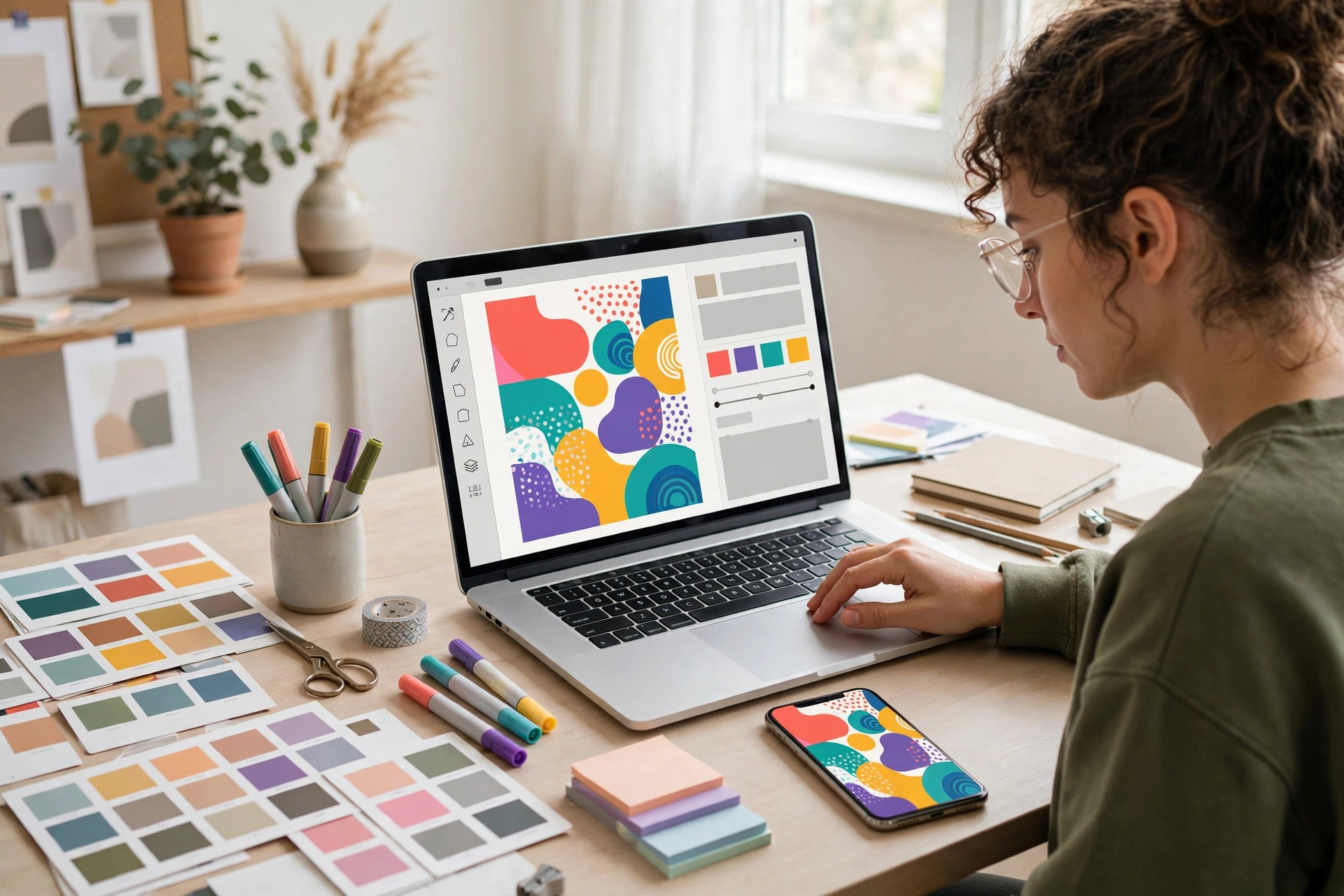
Magic Media turns written descriptions into original images. Describe what you want — “a cozy coffee shop interior at sunrise, watercolor style” — and it generates several options you can insert into your design. It can also generate short videos from text prompts on supported plans. This is the tool you’ll use when stock photos don’t quite match your vision.
Magic Design: Automatic Layouts
Magic Design is the fastest way to start a project. Type a prompt describing what you need — “an Instagram post announcing a weekend yoga workshop” — and it generates complete, editable design layouts: background, typography, colors, and placeholder images already arranged. You then customize the result instead of starting from a blank page.
Background Remover and Photo Edits
The background remover deletes a photo’s background with a single click, leaving a clean cutout you can place on any design. Related one-click edits include Magic Eraser, which removes unwanted objects from photos. Note that the background remover generally requires a paid plan, so free-plan users may need an alternative method.
Step-by-Step Project: Design a Social Media Post From a Text Prompt
Let’s put it all together. You’ll design an Instagram-style square post for a fictional weekend farmers market, using only a text prompt as your starting point.
Step 1: Start With Magic Design
- Open Canva and click Create a design, then choose Instagram Post (Square).
- In the editor, open Magic Studio from the side panel and select Magic Design.
- Type your prompt: “A cheerful Instagram post for a Saturday farmers market, fresh vegetables and flowers, warm colors.”
- Browse the generated layouts and click one you like. It appears on your canvas, fully editable.
Step 2: Generate a Custom Image With Magic Media
- Open Magic Media in Magic Studio.
- Describe your image in detail: “Overhead photo of colorful vegetables and sunflowers in wooden crates at a market stall, bright daylight.”
- Pick a style if offered, then generate. Review the options and insert your favorite.
- Replace the placeholder image in your layout with your generated one, and resize it to fit.
Step 3: Write the Text With Magic Write
- Open Magic Write and prompt it: “Write a short, friendly Instagram caption for a Saturday farmers market post, under 25 words.”
- Copy the result into the text box on your design.
- Edit the headline directly on the canvas — shorten it, change the font size, or try a bolder typeface until it reads well at a glance.
Step 4: Clean Up the Photo
- Click any photo in your design.
- Use Edit photo and try the background remover if you want a cutout effect for a product or logo element. (Paid plan required for this feature.)
- Adjust brightness or use auto-enhance so all elements feel like they belong together.
Step 5: Export and Share
- Click Share, then Download.
- Choose PNG for the sharpest social media quality.
- Post it — and save the design as a template so next week’s post takes half the time.
For more content ideas to pair with your new design skills, see our guide to the best AI tools for social media content.
Tips for Better AI Image Results in Magic Media
Good prompts make good images. These habits help a lot:
- Be specific about the subject. “A red vintage bicycle leaning against a brick wall” beats “a bicycle.”
- Name a style. Add “watercolor illustration,” “flat vector,” or “photorealistic” so the AI knows the look you want.
- Describe lighting and mood. “Soft morning light, cheerful mood” gives the generator useful direction.
- Generate several and pick the best. AI images vary between attempts; generate a batch and choose the strongest.
- Keep text out of image prompts. AI image generators still struggle with readable words, so add your text in Canva’s text boxes instead.
- Check for odd details. Zoom in on hands, faces, and small objects — regenerate anything that looks wrong before publishing.
Free vs Paid: Which Magic Studio Features Cost Extra?
Canva’s free plan covers a solid set of basics, and you can experiment with several Magic Studio tools without paying. However, some features — including the background remover and higher usage limits on generation tools — require a paid plan. Paid plans are available with more AI credits and premium features; check Canva’s current pricing page to see exactly what’s included on each tier before you commit.
A practical approach: learn the workflow on the free plan, and upgrade only when you hit a limit or need a specific paid feature regularly.
Conclusion
Now you know how to use Canva AI Magic Studio like a beginner who means business: Magic Write handles your words, Magic Media creates your images, Magic Design builds your layouts, and the background remover cleans up your photos. Run through the social media post project above once, and you’ll have a repeatable workflow for flyers, thumbnails, and presentations too. Start on the free plan, upgrade only if you need to, and let the AI handle the blank-canvas part.
Frequently Asked Questions
What is Canva Magic Studio?
Magic Studio is Canva’s collection of AI-powered design tools, including Magic Write for text, Magic Media for AI-generated images and video, Magic Design for automatic layouts, and one-click photo tools like the background remover.
Is Canva AI free?
Canva offers a free plan and several Magic Studio tools work on it, but some features — such as the background remover and higher generation limits — require a paid plan. Check Canva’s current pricing for details.
How do I generate an image in Canva?
Open Magic Studio in the editor, select Magic Media, type a detailed description of the image you want, pick a style, and generate. You can insert the result directly into your design.
Can Canva AI design a whole post for me?
Yes. Magic Design takes a text prompt like “an Instagram post for a weekend sale” and generates complete, editable layouts. You then customize the text, images, and colors to make it yours.
How is Canva AI different from Notion AI?
They solve different problems: Canva AI creates visual designs, while Notion AI helps you write and organize notes. If you want both sides covered, read our beginner’s guide to using Notion AI alongside this one.